In the old-days, we used to use a note book, and before that, sticky papers. <smile> Others use simple words like their first name, or their last name. The problem is that simple words that you can remember are also very easy to guess, and one can easily obtain a program that guesses passwords. All one needs is some time and they can break into your email for instance. Check out: http://en.wikipedia.org/wiki/Password_cracking for more information.
Now if you want to make really hard passwords, so they can not be easily guessed, read this for a good method: http://securitywatch.pcmag.com/security/294263-how-to-make-insanely-secure-passwords
In this TechyGift, I'm going to discuss how one can easily find and use the correct password, without using a note book or sticky notes. While there are a number of programs that can be used to make your "secret" life easier, I'm only going to discuss the one that I use: Keepass Password Safe.
- I used to use a text file that had a name like "telephone numbers.txt" so anyone looking would not think it was a file containing all my passwords. It worked quite well and also included a list of my telephone numbers at the top of the text file. The problem was, that if it was in my lap-top and I lost the lap-top then I'd need to change all my passwords. :-( Also, if someone gets into your computer, then they can do a search for your passwords in all the files on your computer, and they'd find it very quickly. :-(
- Browsers are now adding capability to save your password(s) once you use it/them. You may have seen IE, Firefox or Chrome ask you if you wanted to save the password you just entered. ---I always say no. If you save passwords in one place in your computer, and if the computer is hacked --i.e. someone evil breaks into it to take some of your data, they are going to try to steal your passwords. If you want to see how easy it is, read this. It would make it harder for them if they were not in a place designed for them.
- Commercial password keeping software is available, but why pay for software if you can get it for free? There are also other good security reasons for using Open Source Software rather than proprietary software. In Open Source Software, all programming code is public and the code is reviewed by many people. This eliminates code that may have back-doors or other snooping software embedded inside. With proprietary software one must simply trust the manufacturer.
- Keepass Password Safe is my recommended Open Source solution. Here is their website: http://keepass.info/
How it works:
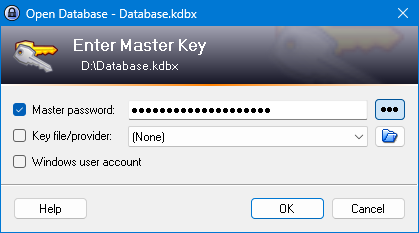
The software creates an encrypted database of your user-names and passwords which can only be read if you have the secret password you created to store your other passwords. (called the Master Password) The end result is all you need to remember is one password, and the hundreds that you might have for your various web sites will all be usable very easily by you alone. Here is the login screen for Keepass:
The program works under Windows Operating Systems as well as Linux, so once you're ready to migrate to Linux, you can very easily take your user-names and passwords with you, and you won't have to re-type anything. The same encrypted database under Windows, can be copied to Linux, opened, and read under Linux --- if you have the secret password you used in windows.
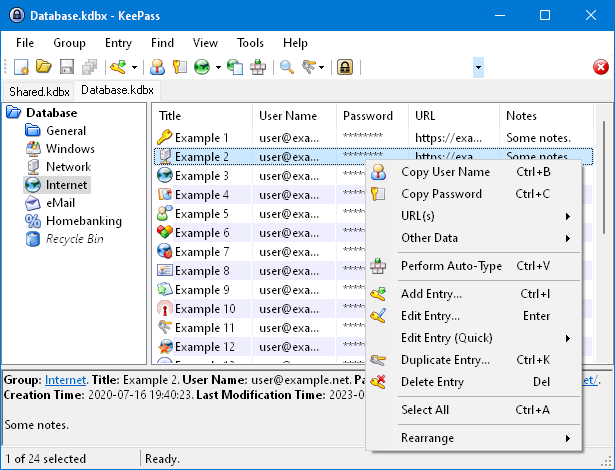
The program once opened, looks like a version of Windows file manager. The headings on the left can be added, changed, or deleted i.e. so one can categorize all their email accounts in one place. One can make numerous catagories to organize your passwords. Lets say you create a category called "Banks"
You would click the category, and then double-click in the blank frame on the right. You'd get a screen to be used to enter data for a new "Bank" entry. If you had an account at the TD Bank, you could enter the details here. User-name, password, url location for the Bank as well as other information used when you set up the account.
To use the username and password, all one needs to do is open Keepass with the master Password, click on the "Bank" Category, and then the TD Bank entry will be visible on the right of the Categories. Double click on the User-name. This will put a copy of the Username in the system's clipboard. Now go to the web-page for the TD Bank and click your pointer in the field asking you to log in with your user name. Right-click and Paste. Now go to Keepass and Double click on the password. This will put a copy of the password in the system's clipboard. Now go to the TD Bank website login page and place the pointer in the password field. Right-click the mouse and select "Paste" on the menu. Hit enter to log-in using both your Username and your Password. The nice thing is that you didn't even have to see them, and anyone beside you also could not see them.
If you change a password, you have to remember to change in it Keepass as well.
You would click the category, and then double-click in the blank frame on the right. You'd get a screen to be used to enter data for a new "Bank" entry. If you had an account at the TD Bank, you could enter the details here. User-name, password, url location for the Bank as well as other information used when you set up the account.
To use the username and password, all one needs to do is open Keepass with the master Password, click on the "Bank" Category, and then the TD Bank entry will be visible on the right of the Categories. Double click on the User-name. This will put a copy of the Username in the system's clipboard. Now go to the web-page for the TD Bank and click your pointer in the field asking you to log in with your user name. Right-click and Paste. Now go to Keepass and Double click on the password. This will put a copy of the password in the system's clipboard. Now go to the TD Bank website login page and place the pointer in the password field. Right-click the mouse and select "Paste" on the menu. Hit enter to log-in using both your Username and your Password. The nice thing is that you didn't even have to see them, and anyone beside you also could not see them.
If you change a password, you have to remember to change in it Keepass as well.

No comments:
Post a Comment