Tuesday, 27 May 2014

Saturday, 27 July 2013
Become the Administrartor in Win7
Your default account in Windows 7 is NOT Administrator. To gain
admin-level access to any file, folder or program, you need to right
click, open Properties, Compatibility, and select Run as Administrator.
Wednesday, 10 April 2013
Facebook Guidlines
Simple Facebook Guidelines:
1. Where have you worked? Your friends already know. Don't add this to the facebook database so that strangers can find you in a search they make.
2. Where have you gone to college? Your friends already know that too. Don't add it to the Facebook data base for strangers.
3. Where do you live? Your friends know where you live too! Don't ever put your address into Facebook.
4. Where are you from? Why do strangers want to know this? Your friends already know.
5. What do you "Like"? When you press the "Like" button from Facebook, the web site or product advertisement you are looking at will show up in your Facebook page. "So what" you ask? Facebook is tracking what you "Like" so they can send you and your friends targeted advertising. Notice how hard it is to remove a link you "Liked." They make it easy to add data, but they make it HARD to remove data. My advice is do not "Like" anything unless it is a restaurant you want your friends to know about.
6. What about using Facebook email, or Facebook chat? --- here again, you can not delete your own data. You have to ask the question, why not?
7. What about tagging your friends on Facebook? This when you associate a person's face with their name. Tagging a picture should never be done without first getting your friend's permission. Anyone who can access the picture can save the name associated with it, which then could be used for identity theft. Don't do this to your friends. They already know who they are, and their friends also know who they are. Strangers may not, but after you've tagged their picture, they too will know.
Bottom line: do not put personal data in Facebook! It's simple.
1. Where have you worked? Your friends already know. Don't add this to the facebook database so that strangers can find you in a search they make.
2. Where have you gone to college? Your friends already know that too. Don't add it to the Facebook data base for strangers.
3. Where do you live? Your friends know where you live too! Don't ever put your address into Facebook.
4. Where are you from? Why do strangers want to know this? Your friends already know.
5. What do you "Like"? When you press the "Like" button from Facebook, the web site or product advertisement you are looking at will show up in your Facebook page. "So what" you ask? Facebook is tracking what you "Like" so they can send you and your friends targeted advertising. Notice how hard it is to remove a link you "Liked." They make it easy to add data, but they make it HARD to remove data. My advice is do not "Like" anything unless it is a restaurant you want your friends to know about.
6. What about using Facebook email, or Facebook chat? --- here again, you can not delete your own data. You have to ask the question, why not?
7. What about tagging your friends on Facebook? This when you associate a person's face with their name. Tagging a picture should never be done without first getting your friend's permission. Anyone who can access the picture can save the name associated with it, which then could be used for identity theft. Don't do this to your friends. They already know who they are, and their friends also know who they are. Strangers may not, but after you've tagged their picture, they too will know.
Bottom line: do not put personal data in Facebook! It's simple.
Friday, 10 August 2012
How can I Manage Passwords from my iPad
One thing about new technology is that it can simplify your life --or it can make it even more complex !!!

I love my new ipad because now I don't need to use a mouse. I'm like a cat on the screen. :-)
I'll discuss the merits and "gotchya's" of the ipad later.
It's enough to know now that KEEPASS works not only in Windows, on Linux, but also on an ipad !
WOW ! This is interoperability beyond Apple's wildest dreams (or plans).
To make this work, you need a way to download the keepass data file to the ipad. This could be done in itunes on Windows, but alas I don't use Windows.
So I used Dropbox, a small application that can be loaded both on the ipad as well as the desktop. They have clients that work both in Windows for you, and in Linux (for me -yeh!)
1. download Dropbox from the Apple App Store on the ipad
2. download and install Dropbox to your desktop.
3. create a Dropbox account on the dropbox website
4. use your new user name and password to configure both the desktop client and the ipad client to "see" your new account at Dropbox.
Dropbox will create a directory on your Desktop called "Dropbox". If you copy and paste a file into this directory, Dropbox will automatically send it to your ipad.

I love my new ipad because now I don't need to use a mouse. I'm like a cat on the screen. :-)
I'll discuss the merits and "gotchya's" of the ipad later.
It's enough to know now that KEEPASS works not only in Windows, on Linux, but also on an ipad !
WOW ! This is interoperability beyond Apple's wildest dreams (or plans).
To make this work, you need a way to download the keepass data file to the ipad. This could be done in itunes on Windows, but alas I don't use Windows.
So I used Dropbox, a small application that can be loaded both on the ipad as well as the desktop. They have clients that work both in Windows for you, and in Linux (for me -yeh!)
1. download Dropbox from the Apple App Store on the ipad
2. download and install Dropbox to your desktop.
3. create a Dropbox account on the dropbox website
4. use your new user name and password to configure both the desktop client and the ipad client to "see" your new account at Dropbox.
Dropbox will create a directory on your Desktop called "Dropbox". If you copy and paste a file into this directory, Dropbox will automatically send it to your ipad.
Wednesday, 14 March 2012
Saturday, 10 March 2012
do your email in the cloud !
This is a wonderful idea that developed a few years ago. The idea that we could receive and send email without downloading it to our computer or sending it from our computer.
This may sound bizarre, but this is what you do if you read your email from a browser like IE, Firefox, or Chrome.
Some people still use programs on their computer such as Outlook, or Outlook Express, but this note will discuss why using these programs is a bad idea, and this note will suggest that you change the way you are reading and sending your email.
Years ago, telephone lines were expensive and very slow to move data. Email programs were made to maximize your time and it might take 5 mins to get all your mail and download it to your computer on your 1200 baud modem. Computer viruses were just beginning, and were hard to catch. You may remember connecting to your email provider and going off to make a coffee, coming back and answering all the email while disconnected from your telephone line so you could receive telephone calls. Then you would call your provider back, and all your answered email would be uploaded and sent on their way.
Wakeup now, it is 2012. Why should you continue to use a program like Outlook on your computer for email ? Don't tell me it's because you can not learn anything new, or because you finally have memorized what buttons to click. There are many good reasons to stop and learn a better way.

This may sound bizarre, but this is what you do if you read your email from a browser like IE, Firefox, or Chrome.
Some people still use programs on their computer such as Outlook, or Outlook Express, but this note will discuss why using these programs is a bad idea, and this note will suggest that you change the way you are reading and sending your email.
Years ago, telephone lines were expensive and very slow to move data. Email programs were made to maximize your time and it might take 5 mins to get all your mail and download it to your computer on your 1200 baud modem. Computer viruses were just beginning, and were hard to catch. You may remember connecting to your email provider and going off to make a coffee, coming back and answering all the email while disconnected from your telephone line so you could receive telephone calls. Then you would call your provider back, and all your answered email would be uploaded and sent on their way.
Wakeup now, it is 2012. Why should you continue to use a program like Outlook on your computer for email ? Don't tell me it's because you can not learn anything new, or because you finally have memorized what buttons to click. There are many good reasons to stop and learn a better way.
- Using a mail program like Outlook or Outlook Express increases your risk of infecting your computer with a virus, as this is a common way to distribute viruses. All you need is to receive an email attachment that has a virus (a program meant to do something not so nice, like break your computer, or install another spy software etc. If this happens, it will cost you time, money, and inconvenience, not to mention the one-of-a-kind photos you may have lost... or the loss of privacy etc.
- Because you become dependant on your computer hardware, you need to do backups and protect your data from being corrupted or lost. This becomes more of a necessity if you are running a business with it.
Anyone today who uses an email program on their computer absolutely needs to have a sophisticated virus checking program. To do this job properly, the program is complex and hard on your computer hardware. In fact it may take so much power than your computer has, so the result is that your computer may become VERY SLOW. Of course we could blame the computer, and go and buy a better one but I'd suggest a different strategy.
- Get an email ID from Gmail or another email provider. I use Gmail because it provides a clean interface without too much advertisements to fill your screen.
- forward your email from your current provider to your new gmail email address. In this way, anyone who has your old one can still contact you.
The immediate benefit from this is that you can get to your email from any computer. When you are travelling for instance, you can use someone's laptop, or a computer in a hotel. Even smart phones today can use web browsers so you can easily get to your email even on your phone.
Here is what Gmail looks like from the Chrome browser:

There are many other excellent reasons to switch to gmail, but these reasons will have to wait. Check this video out.
Of course if you continue to download your email to your computer at home, you can't do any of this.
Of course if you continue to download your email to your computer at home, you can't do any of this.
Wednesday, 7 March 2012
How Can I Manage my Passwords
How Can I Manage my Passwords?
In the old-days, we used to use a note book, and before that, sticky papers. <smile> Others use simple words like their first name, or their last name. The problem is that simple words that you can remember are also very easy to guess, and one can easily obtain a program that guesses passwords. All one needs is some time and they can break into your email for instance. Check out: http://en.wikipedia.org/wiki/Password_cracking for more information.
Now if you want to make really hard passwords, so they can not be easily guessed, read this for a good method: http://securitywatch.pcmag.com/security/294263-how-to-make-insanely-secure-passwords
In this TechyGift, I'm going to discuss how one can easily find and use the correct password, without using a note book or sticky notes. While there are a number of programs that can be used to make your "secret" life easier, I'm only going to discuss the one that I use: Keepass Password Safe.
In the old-days, we used to use a note book, and before that, sticky papers. <smile> Others use simple words like their first name, or their last name. The problem is that simple words that you can remember are also very easy to guess, and one can easily obtain a program that guesses passwords. All one needs is some time and they can break into your email for instance. Check out: http://en.wikipedia.org/wiki/Password_cracking for more information.
Now if you want to make really hard passwords, so they can not be easily guessed, read this for a good method: http://securitywatch.pcmag.com/security/294263-how-to-make-insanely-secure-passwords
In this TechyGift, I'm going to discuss how one can easily find and use the correct password, without using a note book or sticky notes. While there are a number of programs that can be used to make your "secret" life easier, I'm only going to discuss the one that I use: Keepass Password Safe.
- I used to use a text file that had a name like "telephone numbers.txt" so anyone looking would not think it was a file containing all my passwords. It worked quite well and also included a list of my telephone numbers at the top of the text file. The problem was, that if it was in my lap-top and I lost the lap-top then I'd need to change all my passwords. :-( Also, if someone gets into your computer, then they can do a search for your passwords in all the files on your computer, and they'd find it very quickly. :-(
- Browsers are now adding capability to save your password(s) once you use it/them. You may have seen IE, Firefox or Chrome ask you if you wanted to save the password you just entered. ---I always say no. If you save passwords in one place in your computer, and if the computer is hacked --i.e. someone evil breaks into it to take some of your data, they are going to try to steal your passwords. If you want to see how easy it is, read this. It would make it harder for them if they were not in a place designed for them.
- Commercial password keeping software is available, but why pay for software if you can get it for free? There are also other good security reasons for using Open Source Software rather than proprietary software. In Open Source Software, all programming code is public and the code is reviewed by many people. This eliminates code that may have back-doors or other snooping software embedded inside. With proprietary software one must simply trust the manufacturer.
- Keepass Password Safe is my recommended Open Source solution. Here is their website: http://keepass.info/
How it works:
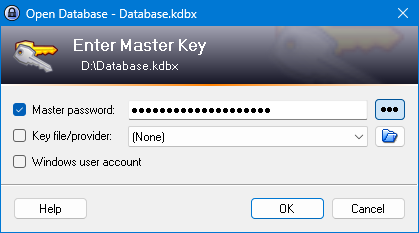
The software creates an encrypted database of your user-names and passwords which can only be read if you have the secret password you created to store your other passwords. (called the Master Password) The end result is all you need to remember is one password, and the hundreds that you might have for your various web sites will all be usable very easily by you alone. Here is the login screen for Keepass:
The program works under Windows Operating Systems as well as Linux, so once you're ready to migrate to Linux, you can very easily take your user-names and passwords with you, and you won't have to re-type anything. The same encrypted database under Windows, can be copied to Linux, opened, and read under Linux --- if you have the secret password you used in windows.
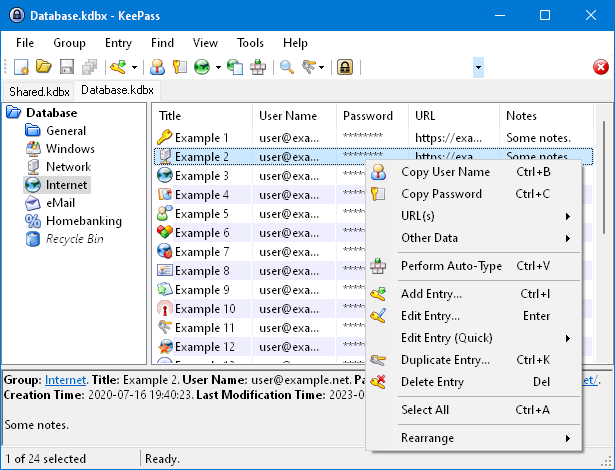
The program once opened, looks like a version of Windows file manager. The headings on the left can be added, changed, or deleted i.e. so one can categorize all their email accounts in one place. One can make numerous catagories to organize your passwords. Lets say you create a category called "Banks"
You would click the category, and then double-click in the blank frame on the right. You'd get a screen to be used to enter data for a new "Bank" entry. If you had an account at the TD Bank, you could enter the details here. User-name, password, url location for the Bank as well as other information used when you set up the account.
To use the username and password, all one needs to do is open Keepass with the master Password, click on the "Bank" Category, and then the TD Bank entry will be visible on the right of the Categories. Double click on the User-name. This will put a copy of the Username in the system's clipboard. Now go to the web-page for the TD Bank and click your pointer in the field asking you to log in with your user name. Right-click and Paste. Now go to Keepass and Double click on the password. This will put a copy of the password in the system's clipboard. Now go to the TD Bank website login page and place the pointer in the password field. Right-click the mouse and select "Paste" on the menu. Hit enter to log-in using both your Username and your Password. The nice thing is that you didn't even have to see them, and anyone beside you also could not see them.
If you change a password, you have to remember to change in it Keepass as well.
You would click the category, and then double-click in the blank frame on the right. You'd get a screen to be used to enter data for a new "Bank" entry. If you had an account at the TD Bank, you could enter the details here. User-name, password, url location for the Bank as well as other information used when you set up the account.
To use the username and password, all one needs to do is open Keepass with the master Password, click on the "Bank" Category, and then the TD Bank entry will be visible on the right of the Categories. Double click on the User-name. This will put a copy of the Username in the system's clipboard. Now go to the web-page for the TD Bank and click your pointer in the field asking you to log in with your user name. Right-click and Paste. Now go to Keepass and Double click on the password. This will put a copy of the password in the system's clipboard. Now go to the TD Bank website login page and place the pointer in the password field. Right-click the mouse and select "Paste" on the menu. Hit enter to log-in using both your Username and your Password. The nice thing is that you didn't even have to see them, and anyone beside you also could not see them.
If you change a password, you have to remember to change in it Keepass as well.
Subscribe to:
Comments (Atom)